Smart Waitlist & Front of House
Run a live walk-in waitlist like Yelp or Google — guests join by QR code, watch their place in line update live, and get an automatic alert when their table is ready. Includes a kiosk-ready Front of House view and wait-time analytics.
In this article
What the Waitlist Does
On a busy night, walk-in parties usually mean a crowded doorway, a paper list, and guests asking "how much longer?" every few minutes. The Wehanda waitlist replaces all of that.
Guests join the list in one of two ways:
- QR self check-in — they scan a QR code at your door or host stand, enter their name and party size, and instantly get a live web page showing their place in line. No app download needed.
- Staff entry — your host taps "Add party" on the dashboard and enters the guest in seconds.
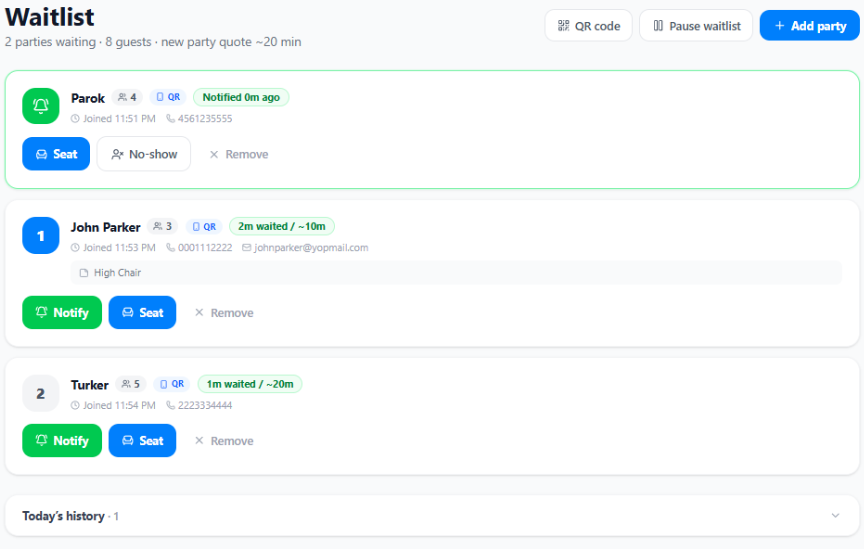
Either way, every party appears on your Dashboard → Waitlist page in real time, ordered by arrival, with a live timer showing how long each party has waited.
When a guest leaves an email, they automatically receive a "you're on the list" confirmation and a "your table is ready" alert — no one has to shout names across the room.
Turning It On
Go to Dashboard → Setup → Waitlist section and toggle it on. Three settings control how it behaves:
Max party size: Groups larger than this are asked to see the host instead of self-joining. Default is 12.
Minutes per party ahead: Powers the automatic wait estimate. If set to 10 and there are 3 parties ahead, a new guest is quoted about 30 minutes. Watch your real turn times for a week and adjust — an honest quote is what makes guests trust the list.
No-show grace period: After you tap "Notify," this is how long you hold the table before the party is considered a no-show. Default is 10 minutes.
You can also turn Guest self check-in via QR off entirely if you prefer staff-only entry.
Save, then open Dashboard → Waitlist and click QR code to download a printable QR for your host stand, door, or window.
Managing the Line on a Busy Night
The Waitlist page is designed to live on a tablet or phone at the host stand. Each party is a card with big touch targets:
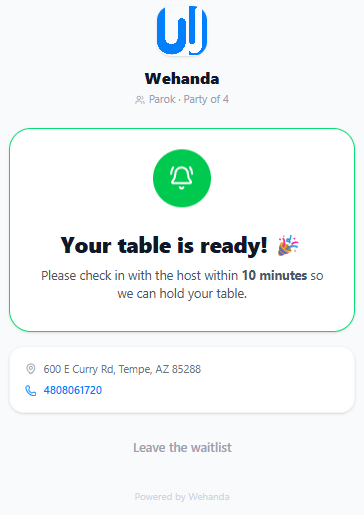
- Notify — the guest gets an instant "your table is ready" email (if they left one) and their live page flips to "Please see the host." A countdown shows how long ago you notified them.
- Seat — marks the party seated. If you've set up Tables (Setup → Tables), you can assign a specific table and Wehanda highlights which tables fit the party size.
- No-show — for notified parties that never showed. This is tracked so you can see your real no-show rate.
- Remove — for guests who tell you they're leaving.
Wait-time badges age from green to amber to red as a party passes its quoted wait, so you can spot who needs attention at a glance.
Need to stop the line during a rush? Tap Pause waitlist — the QR page immediately shows "temporarily closed, please see the host" and flips back the moment you resume. You can still add parties manually while paused.
What Guests See
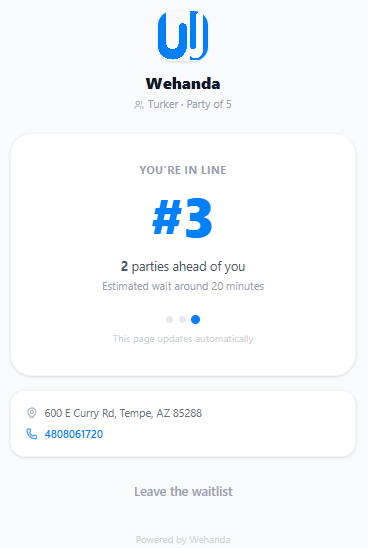
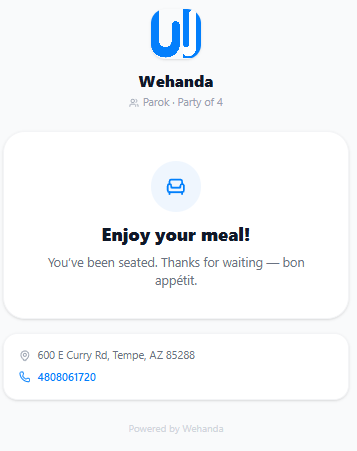
After joining, every guest gets a private live status page (linked from their confirmation email, or shown right after scanning the QR):
- Their position in line ("#3") and how many parties are ahead
- The estimated wait
- A big "Your table is ready!" screen the moment you tap Notify
- A "Leave the waitlist" button if plans change — which frees their spot instantly on your dashboard
The page updates automatically every few seconds. Guests can wait in their car or take a walk instead of hovering at the door — and they stop asking the host for updates, because the answer is on their phone.
The Waitlist Builds Your Customer Database
Every guest who joins with a phone number is automatically added to Dashboard → Customers, and the sign-up form includes a marketing opt-in ("keep me posted on updates and offers") that is checked by default.
That means every busy-night walk-in becomes a contact your AI marketing campaigns can reach later — win-back emails, birthday offers, slow-day promotions. Platforms like Yelp keep this data for themselves; with Wehanda, it's yours.
You'll also see a waitlist joined event on each customer's timeline, so you know who your regular walk-ins are.
Alerts for Your Staff
New waitlist parties trigger the same alert system as orders and reservations:
- The notification bell rings on every dashboard page, with configurable sound (ring N times, ring until acknowledged, or silent) and an optional screen flash — set this in Setup → Notification Alerts → Waitlist.
- Owners with the mobile app get a push notification when a guest self-joins via QR.
Multiple devices stay in sync automatically — if two staff members have the Waitlist page open, seating a party on one instantly updates the other.
Front of House: The Whole Door on One Screen
On a Friday night your door has two kinds of guests: walk-ins in the waitlist and parties who booked ahead. Dashboard → Front of House puts both on one screen so your host never flips between pages:
- Left column — Walk-in Waitlist: the live queue with one-tap Notify, Seat, No-show, and Remove, plus a quick-add bar for new walk-ins (just name and party size).
- Right column — Today's Reservations: every booking for today ordered by time. Parties past their reservation time are highlighted amber ("arriving late?"), and you can Confirm, Seat, or mark No-show right there.
- The stats strip on top answers the questions hosts get asked all night: how many parties are waiting, how many tables are notified, when the next reservation lands, and how many booked guests arrive in the next hour.
Every card is clearly labeled — a numbered badge for walk-ins, a time badge for bookings — so there's never confusion about who's who. Both columns update live, and each links back to its full management page when you need the deeper tools.
Kiosk Mode
Tap Kiosk mode in the top-right of the Front of House page to turn any tablet into a dedicated host-stand station:
- The screen goes fullscreen with your restaurant name and a live clock — no sidebar, no distractions.
- All the same one-tap actions work, sized for fingers.
- Tap Exit kiosk (or press Escape) to return to the normal dashboard.
Prop a tablet at the host stand, open Front of House, tap Kiosk mode, and your door runs itself. Because everything syncs in real time, a manager checking the dashboard from the office sees exactly what the host sees.
Waitlist Analytics & Your Monthly Report
The waitlist quietly measures how your door actually performs:
Dashboard → Analytics → Waitlist shows parties joined, seat rate, no-show and walk-away rates, your average actual wait vs what you quoted, QR vs staff sign-ups, marketing opt-ins captured, and your busiest walk-in days and hours — switchable between 7, 30, and 90 days.
The most valuable number is quote honesty: if guests routinely wait 15 minutes longer than quoted, they stop trusting the list and walk away. The analytics card tells you plainly when to adjust "minutes per party" in Setup.
The same stats also appear in your monthly owner report email — parties joined, seat rate, average wait vs quote, and marketing opt-ins captured — right alongside your revenue and reservations numbers, so you see the door's performance without opening a dashboard.
Waitlist vs Reservations
Use both — they solve different problems:
Reservations are for planning ahead: a guest books a specific date and time, days in advance.
Waitlist is for right now: a walk-in wants the next available table tonight.
Each has its own dashboard page for deep management, and Front of House unifies them for live service. Both feed the same customer database. Text-message alerts (in addition to email) are coming to the waitlist as an add-on soon.
Was this article helpful?
If you need more help, email support@simplidone.com